
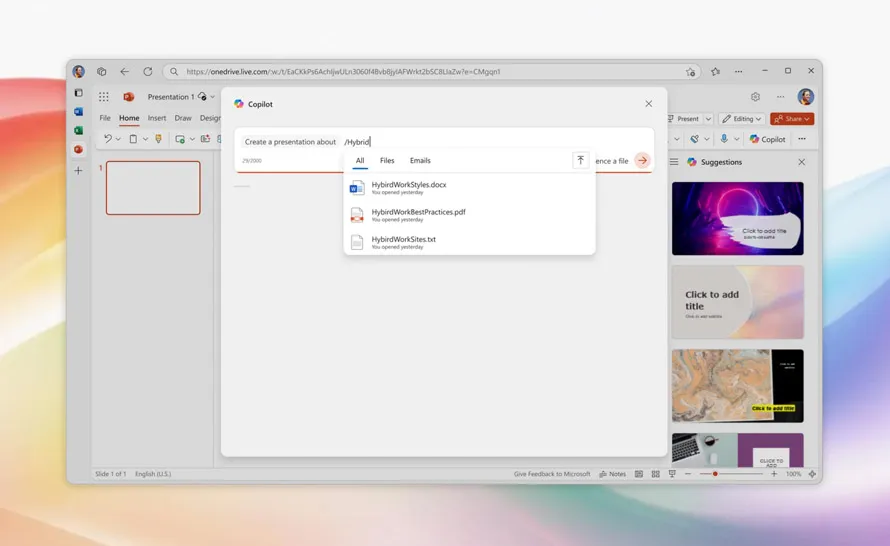
Microsoft 365 Copilot in PowerPoint has long been able to generate PowerPoint presentations based on a simple text description (prompt) or Word documents. This highly regarded feature has just been expanded to include additional file types that can be used as references. How does it work?
Copilot in PowerPoint can generate a presentation based on a prompt alone. However, you can also specify files for it to use as a basis. Microsoft has announced that, in addition to Word documents, you can now select TXT and PDF files stored in OneDrive and SharePoint. How do you do this?
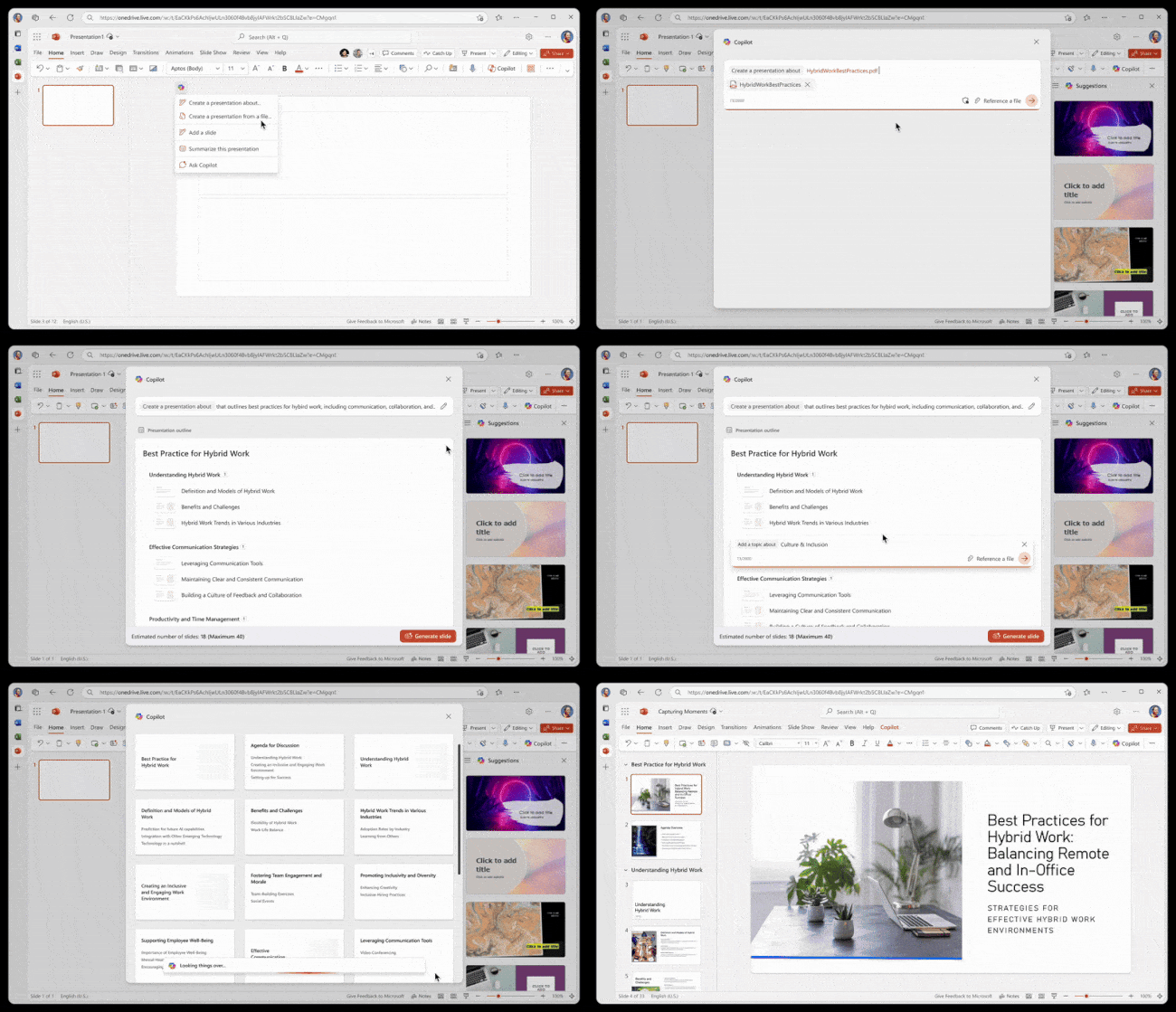
- Open a new presentation in PowerPoint on Windows, Mac, or in a web browser.
- Click the Copilot icon above the slide.
- In the Copilot panel, select " Create a presentation from a file."
- In the "Create a presentation on" field, enter the name of a DOCX, PDF, or TXT file, or click the "Attach files from the cloud" button to open a file browser and select files from OneDrive or SharePoint.
- You can provide more details—such as which topics you want Copilot to focus on.
- Click the Send button, and Copilot will generate a draft.
- Review the outline. You can add, reorder, and delete topics.
- To create a complete presentation, click the " Generate Slides" button .
How can you use this at work? For example, you can generate presentations by entering prompts such as:
- Create a presentation on the key points from Quarterly_Report_FY25Q3.pdf
- Create a presentation on the importance of hybrid meetings using PracaHybrydowaNajlepszePraktyki.pdf Create a presentation on the key points from Quarterly_Report_FY25Q3.pdf
- Create a presentation on the major scientific discoveries from ResearchResults.txt
The feature is now available in PowerPoint on Windows (version 2409, build 18025.20000), macOS (version 16.88, build 24082514), and in the browser for users with a corporate Microsoft 365 Copilot enterprise license.
Copilot in the context menu and on the new tab page in Edge
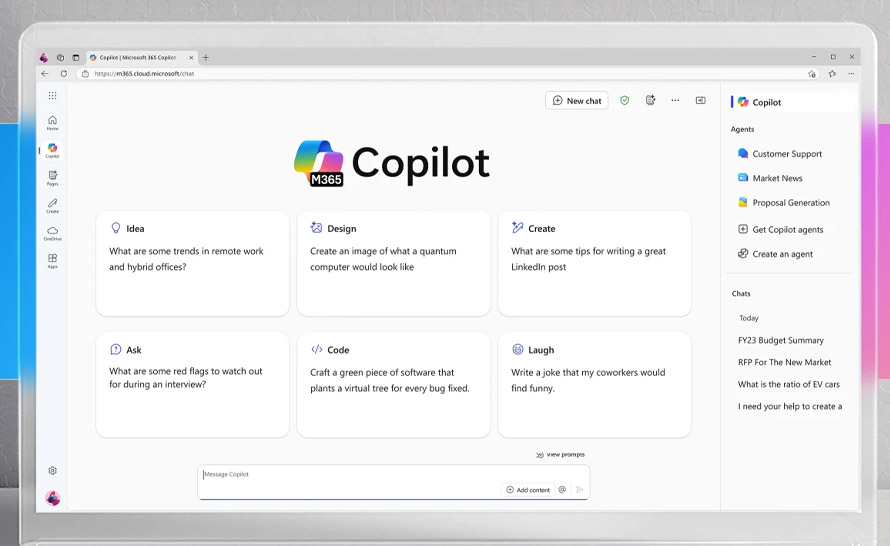
Microsoft has released the Edge 138 update in the Stable Channel. Version 138.0.3351.55 introduces a few new features related to Copilot. It will now be easier to search using the assistant and to use its artificial intelligence to generate summaries. The new option is available in the context menu. Users can also search their browsing history using the built-in AI model. How exactly does all this work?
Microsoft Copilot on the new tab page in Edge
Microsoft Edge is the first web browser integrated with artificial intelligence. It was followed by Opera One and Perplexity Comet. From the very beginning, Edge has allowed users to use Copilot (formerly known as Bing Chat) in the sidebar and features a large button for it in its interface. There’s also a new option designed for a growing group of users who prefer to search for information on a chatbot page rather than using a traditional web search engine.
The option to set a Copilot page as the new tab page was introduced in Edge 137 as an experimental feature that required tinkering with the flag editor to enable. It is now an official feature, though it works a little differently. Users can see Copilot's suggested prompts related to work and productivity next to the search box on the new tab page. Users can also see the Copilot icon in the search box, allowing them to click the icon to send their current search query to Copilot. – explains Microsoft.
This solution seems better than the aforementioned experimental feature. Thanks to it, users won’t overuse AI when a question or phrase doesn’t require it (AI processing is up to 10 times more expensive than a traditional search engine).
Summary from Microsoft 365 Copilot Chat in the Edge context menu
Creating summaries is one of the best-known features of generative AI. Now there’s a new option to get them quickly. It will generate them for us Microsoft 365 Copilot Chat will generate them for us after clicking a new option in the context menu. This feature helps users quickly familiarize themselves with the open page and ask questions about it, Microsoft explains. The new feature is being rolled out gradually and may not be available right away.
AI-powered browsing history search in Edge
Microsoft Edge also has an AI feature that helps you search your browsing history. Even if you use a synonym or make a typo, the AI should understand what you mean and find pages you’ve visited before. Once you enable this feature, the pages you visit will appear in the expanded search results in your history.
"The model running on the device is trained using your data, which never leaves your device and is never sent to Microsoft," the changelog states.
This feature is also being rolled out in a controlled manner and may not yet be available. Administrators can control it using the EdgeHistoryAISearchEnabled policy .
New AI Models in GitHub Copilot for Visual Studio

Visual Studio and Visual Studio Code are among the most popular development environments. They are used by 50 million users every month. Developers can rely on artificial intelligence to assist them at every stage of application development. Microsoft reports that GitHub Copilot for Visual Studio will provide them with the latest, improved models. Which ones are available?
Microsoft is introducing smarter default models, a wider selection of models, and easier ways to manage their use in GitHub Copilot for Visual Studio.
Copilot in Visual Studio now uses GPT-4.1 as the default model (previously 4o). In our tests, it delivered significantly better performance—faster responses, higher-quality suggestions, and greater overall efficiency – explains Rhea Patel, Product Manager for GitHub Copilot for Visual Studio.
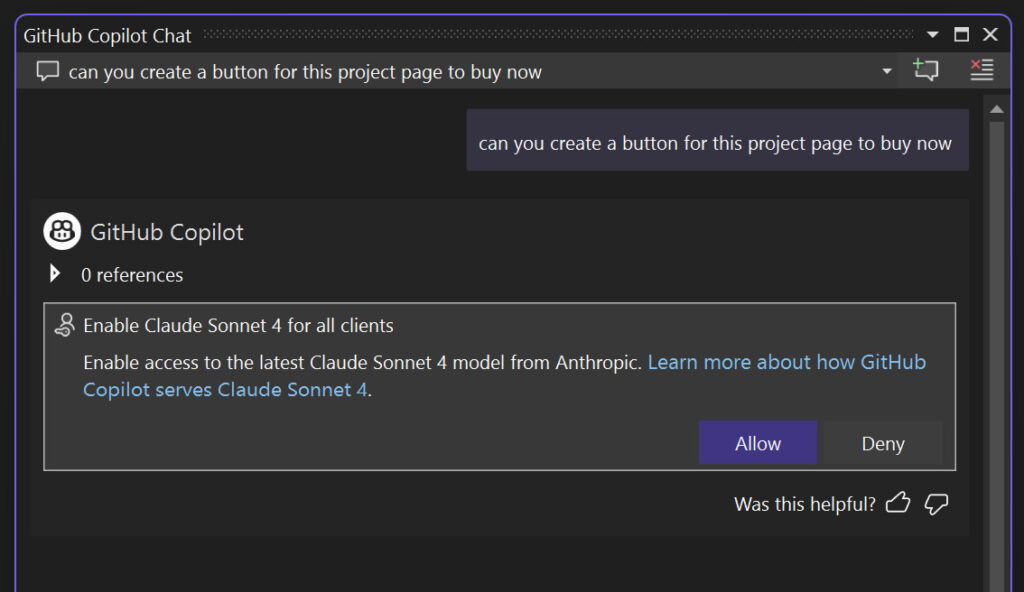
GitHub Copilot Chat in Visual Studio now offers an even wider selection of AI models, including:
- Claude Sonnet 4
- Claude Opus 4
- Claude Sonnet 3.5
- Claude 3.7 (in non-thinking and thinking modes)
- OpenAI o3 mini
- Gemini 2.0 Flash
- Gemini 2.5 Pro
In addition, the model selection is now persistent, which means your choice will remain active across all threads. Switching between models has also been made easier. If a model is available in your plan but isn’t enabled yet, you’ll see a prompt in the model browser. You don’t need to open GitHub Copilot settings.
Microsoft has also added a new panel to help monitor usage. Just click the Copilot badge in the upper-right corner Visual Studio and select "Copilot Usage" to see how many premium requests you've used in chat, code completion suggestions, and more.
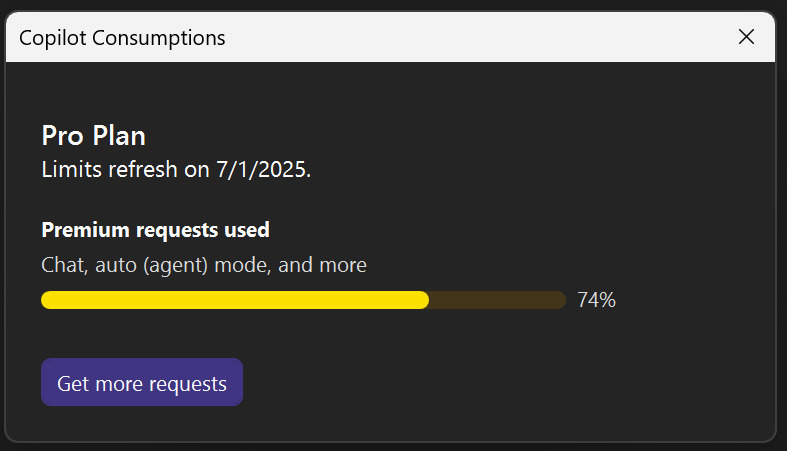
From here, you can also access the "Manage Plan" settings to upgrade your GitHub Copilot subscription or change your settings on GitHub.com. If you've used up your premium requests, you'll be automatically switched to the standard GPT-4.1 model at no additional charge.
Microsoft Introduces Mu, an On-Premises AI Model for Windows
Popular artificial intelligence models found in chatbots and other AI applicationsare most often large language models (LLMs), whose demand for computing power is usually so high that they can only run in data centers. However, there are also small language models (SLMs) that can run on a PC or even a smartphone. Microsoft has just released one.
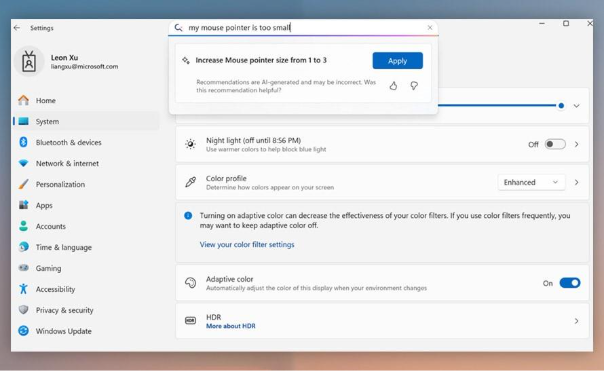
Microsoft has unveiled its latest small language model designed to run on-device. It is called Mu and is well-suited for scenarios that require inferring complex input-output relationships. According to the manufacturer, it was designed to operate efficiently while running locally. Interestingly, it is also the model powering the agent in the Settings app, available to Windows Insiders on Copilot+ PCs. It is this model that matches descriptions provided by users with options in Settings. For example, after typing “my mouse cursor is too small” into the search bar the AI agent will display a dialog box below the search bar that says “Increase mouse pointer size from 1 to 3” with an “Apply” button.
Mu is fully supported by the NPU (Neural Processing Unit) found on Copilot+ PCs. Its response rate exceeds 100 tokens per second. It is not only a small language model (SLM) but also an encoder-decoder model optimized for small-scale deployments. This means that “the encoder first converts the input data into a fixed-length hidden representation, and the decoder generates output tokens based on that representation.” This design ensures that Mu has sufficient performance to handle tasks on a Windows computer.
Microsoft has implemented several optimizations in Mu that allow it to squeeze even more performance out of SLM. The model was trained on an Nvidia A100 GPU using Azure Machine Learning in several stages.
By combining state-of-the-art quantization techniques with hardware-based optimizations, we have ensured that Mu is highly efficient in real-world deployments and in resource-constrained applications. To improve ease of use Windows, we focused on addressing the challenge of changing hundreds of system settings. Our goal was to create an AI-powered agent within Settings that understands natural language and can easily change the relevant settings - Vivek Pradeep, Vice President and Distinguished Engineer, Windows Applied Sciences.
Google has released Gemini CLI. Artificial intelligence in the terminal
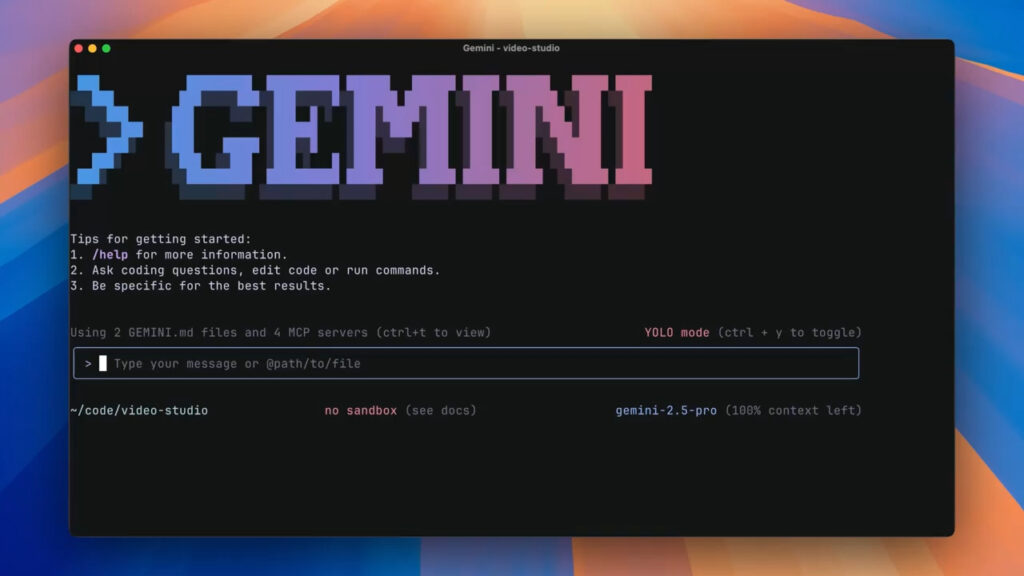
For many programmers and power users, the command-line interface (CLI) is more than just a work tool—it’s their second home. For this reason, many software vendors release text-based versions of their tools. Google has also paid homage to terminal enthusiasts by releasing Gemini CLI, a new open-source AI agent. According to the company, it provides free, lightweight, and—for many people—convenient access to Gemini.
Although it opens in a terminal, Gemini CLI provides access to all multimodal features, such as code understanding, image generation, and web search. The program is compatible with the Model Context Protocol (MCP), which allows for the expansion of its capabilities. It can also be used non-interactively by calling it via scripts, which allows you to automate tasks and integrate it into existing workflows.
Gemini CLI offers an exceptionally generous free plan. After logging into their personal Google account, users can send 60 requests per minute and a total of 1,000 requests per day at no charge. Prompts are sent to Gemini 2.5 Pro, Google’s most powerful model.
It’s also worth mentioning that last week Google released Gemma 3n, an AI model open to developers for use on mobile devices. It can process images, audio, and video—not just text—which is a pleasant surprise. It can run on devices with 2GB of memory, perform programming tasks, and draw conclusions.
Text alerts from the AI on your video doorbell. A new feature from Amazon Ring
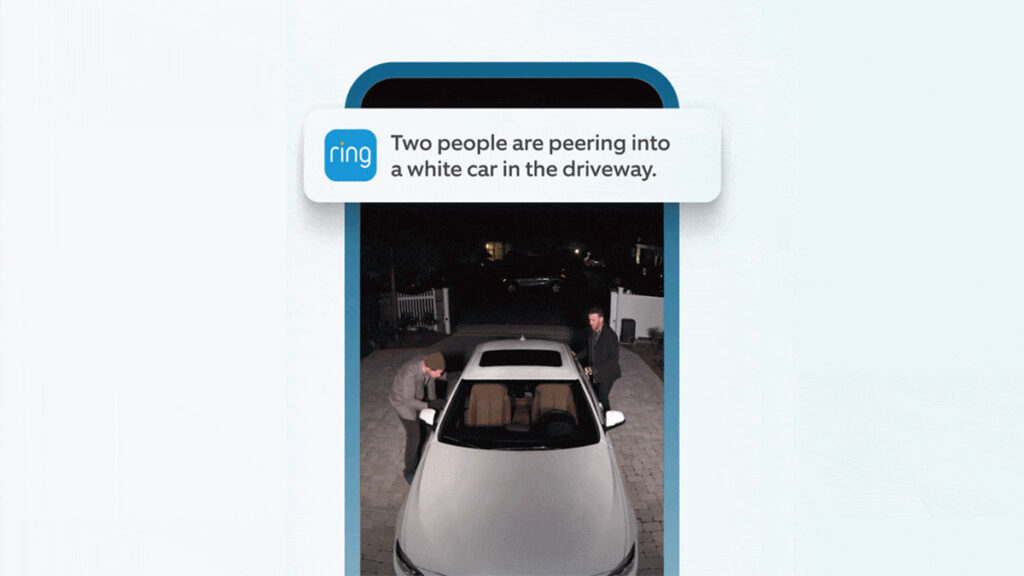
Amazon has introduced a new generative AI feature called Video Descriptions, which will be integrated into Ring devices. A Ring video doorbell (a doorbell with a built-in camera) or Ring camera will send the user text descriptions of what it sees. Notifications will be sent to the phone, allowing users to quickly read them even on the lock screen.
The feature uses computer vision and can quickly describe what the camera has detected, such as “two people are looking into a white car in the driveway” or “a dog is tearing paper towels to shreds on the carpet.” Interestingly, the AI describes only the main causes that triggered the motion alert and the actions the people are taking.
The descriptions are intentionally brief so that users can quickly decide whether they want to respond. The feature has begun rolling out in beta to Ring Home Premium subscribers in the U.S. and Canada. It can be enabled in the Ring app.
Perplexity Comet. A new AI browser for Windows
In May, Perplexity launched its Comet browser exclusively for Mac users on Apple Silicon. As expected, it’s packed with artificial intelligence, allowing users to converse with an AI model in natural language, reminding you of emails you haven’t replied to, or even offering virtual try-ons in the “Try On” experience, which lets you upload a photo of yourself and try on different outfits.
We didn't have to wait long for Comet on Windows. As Perplexity CEO Aravind Srinivas wrote, the Windows build is already ready, and the company has sent out a few invitations to early testers. New builds for Android and iOS are also on the way.
I wonder what Perplexity will offer “Windows” users, who already have Microsoft Edge and Opera One at their disposal.
Germany claims that DeepSeek sends data to China
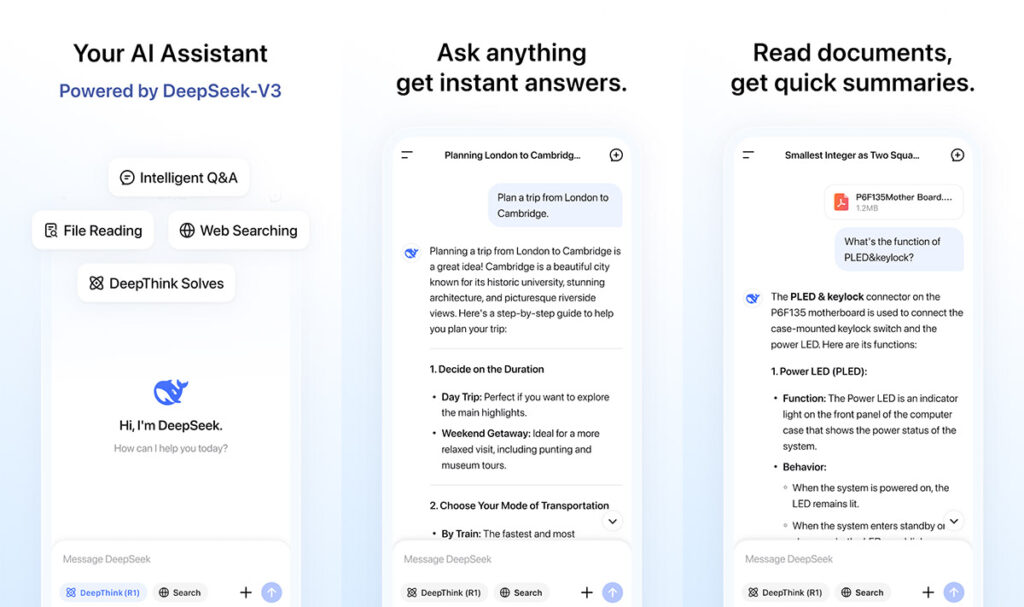
According to the Berlin Commissioner for Data Protection and Freedom of Information (BlnBDI), the app illegally sends user data directly to China—chat histories, uploaded files, and even location and device information. This data is reportedly processed and stored on Chinese servers. This may conflict with EU data protection rules.
Earlier this year, out of nowhere, a little-known Chinese company emerged and challenged the biggest players in the AI industry. Its models proved to be shockingly powerful, but their country of origin raised concerns. Those concerns have just become much more official in Germany.
Back in May, the agency informed the company that if it did not stop the illegal data transfer, its app would be removed from German app stores. DeepSeek did not respond, so the Commissioner invoked the Digital Services Act to formally report the app to Google and Apple stores. It is possible that the app will also be banned in other member states.
Prepared by: Krzysztof Sulikowski