
In the Microsoft 365 environment, we have access to a range of different applications, but this raises a question: how can we integrate them? Let’s imagine a scenario in which we receive an email from a customer containing inquiries about our product or service. If the inquiry doesn’t directly concern us, we usually forward such an email to someone else, but this presents certain problems:
- When there are a lot of messages, finding a specific one in Outlook can be… challenging
- Only a few individuals have access to this email and this information
- We do not have a central database
- I don't have a structured process for determining what questions to ask a client during a follow-up conversation
In such cases, Power Automate comes to the rescue; it offers a wide range of built-in connectors to various applications, not just those designed for the Microsoft 365 environment.
To streamline this process through automation, in the following article I’ll describe how we can use Power Automate along with AI features to generate a summary and suggestions for actions (Calls to Action) that are worth taking before picking up the phone.
Technologies Used
In the demo environment on which the scenario described below is based, the following applications were used:
- A Teams team along with an assigned SharePoint list that will serve as a knowledge base
- The "questions@" email address, to which employees will send their inquiries
- Power Automate Premium with AI capabilities, to create a list entry and generate a summary along with a suggested CTA
Now let's see how this process works in practice.
Process Description
In 2015, Microsoft launched a project codenamed Oxford, which provided developers with tools for facial recognition, speech recognition, and language interpretation. This project evolved into today’s Azure AI Foundry. The infrastructure, originally built for Bing, has become the foundation used today by 65% of Fortune 500 companies that are implementing Azure OpenAI services.
An email was sent to Alex Wilber inquiring about the DG-2000 product, its technical specifications, and the possibility of purchasing 5 units:
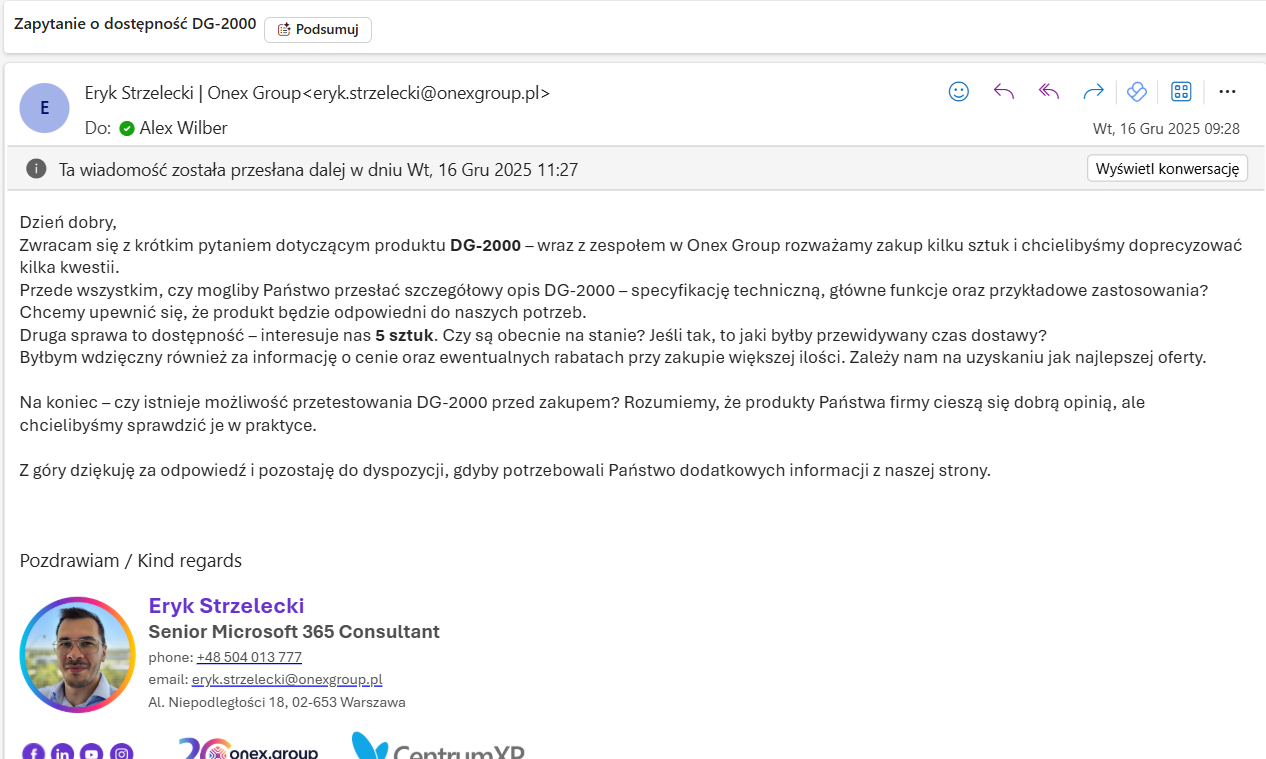
Alex then forwarded this message to another person, adding the "pytania@" mailbox to the recipients—a mailbox specified in the Power Automate flow, which contains the following actions in sequence:
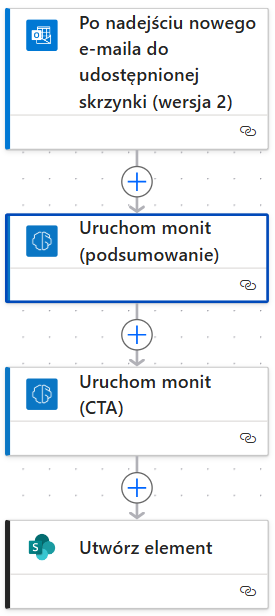
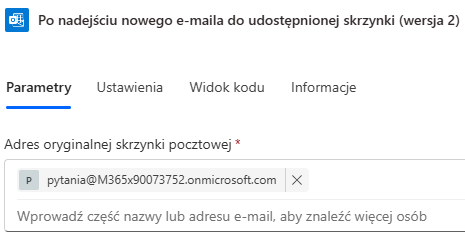
- Trigger: When a new message arrives in the pytania@ mailbox
- Run prompt (summary): Using a prompt sent to the GPT-5 model based on an email, a summary of the message is returned
- Launch a prompt (CTA): As in Step 2, a command is executed that returns suggested steps to take when interacting with a customer
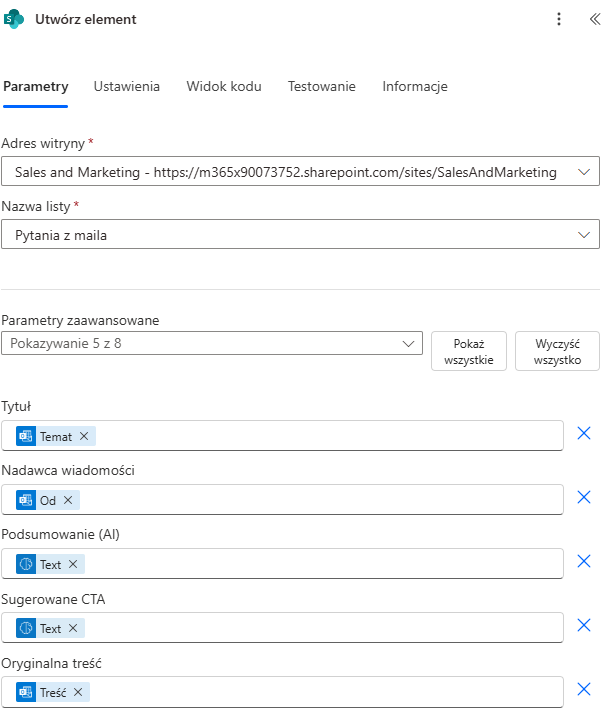
- Create an item: Save an item to a SharePoint list
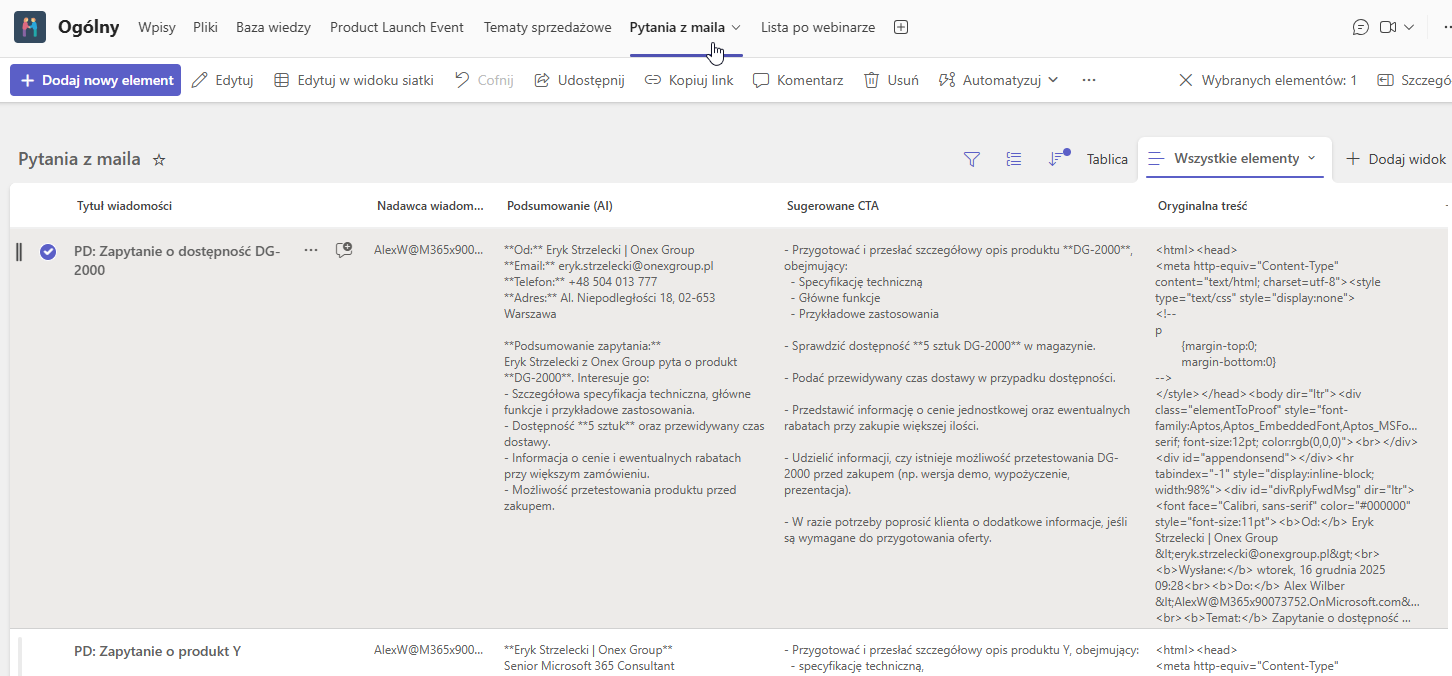
Once the workflow has been completed correctly, we can see a new entry in the list on the added tab in our Teams team, complete with the most important information.
Automation in Retail—How Does It Work?
Flows created with Power Automate can have complex workflows and varying logic, but they all share a common structure—the first step is always a configured trigger. In our case, this is an action triggered by an incoming message to the shared "Questions" inbox.
Next, certain actions are taken, to which we can pass information from the previous steps. This is how steps 2 and 3 were created, which trigger the appropriate queries based on the content of the incoming message.

Step 3 was performed in the same way, but with a different command.

The final step aggregates the results from all previous steps to create a new item in the SharePoint list.
Reaching a human level of data understanding
Between 2015 and 2020, Microsoft’s artificial intelligence reached human-level performance in five key areas: speech recognition, machine translation, question answering, text comprehension, and image description. This led to the development of the XYZ-code model, which combines text, sensory signals (image/sound), and multilingual capabilities, mimicking the human learning process.
Licensing the Solution
Power Automate is a service available as part of virtually every basic Office 365 and Microsoft 365 plan, but using certain connectors or AI features requires an additional license. In the example described, AI Builder credits were used; these will be phased out on November 1, 2026, and replaced by a new solution called Copilot Credits.
More information about the transition to Copilot Credits is available in the Microsoft documentation at the link below:
End of AI Builder credits | Microsoft Learn
Summary
The example presented in this article is, of course, just one of many scenarios in which we can use automation tools and AI to generate content and certain suggestions. This solution allows us to streamline our processes while maintaining the Human-in-the-loop model, where the user can decide which information is necessary and which is unnecessary; however, Power Automate also allows for a fully automated process, such as sending an email using a template we’ve prepared.